Pyaww (ပြော)
Speak Myanmar. It just types. စာရိုက်နေစရာမလို၊ မြန်မာလိုပဲ ပြောလိုက်ပါ။
A menu bar dictation app for macOS. Hold a key, speak Myanmar, release — your words are typed for you. Fully offline: your voice never leaves your Mac. macOS အတွက် menu bar dictation အက်ပ်ပါ။ ခလုတ်တစ်ခု ဖိထားပြီး မြန်မာလို ပြောလိုက်ပါ — လွှတ်လိုက်ရင် စာရိုက်ပြီးသား ဖြစ်နေပါပြီ။ အင်တာနက် လုံးဝ မလိုပါဘူး။ သင့်အသံက Mac ထဲကနေ ဘယ်တော့မှ မထွက်ပါဘူး။
v0.1.0 (beta) · 37 MB · Apple silicon (M1+) · macOS 14 Sonoma+ · free & open source (MIT) v0.1.0 (beta) · 37 MB · Apple silicon (M1+) · macOS 14+ · အခမဲ့ · open source (MIT)
First launch: macOS asks you to allow the app once — 30 seconds. How to install ↓ ပထမဆုံး ဖွင့်ချိန်မှာ macOS က ခွင့်ပြုချက် တစ်ချက် တောင်းပါလိမ့်မယ် — 30 စက္ကန့်ပဲ ကြာပါတယ်။ တပ်ဆင်နည်း ↓
How it worksဘယ်လိုသုံးမလဲ
Hold Right ⌥Right ⌥ ဖိထားပါ
…or Right ⌘ — your pick. Switch any time from the panel.Right ⌘ လည်း ရပါတယ် — ကြိုက်တာ ရွေးပါ။ Panel ထဲကနေ အချိန်မရွေး ပြောင်းလို့ရပါတယ်။
Speak Myanmarမြန်မာလို ပြောပါ
Talk naturally. The menu bar wave turns red while it listens.ပုံမှန်ပြောသလို ပြောလိုက်ပါ။ နားထောင်နေတုန်း menu bar က wave အနီရောင် ဖြစ်နေပါလိမ့်မယ်။
Release — typed.လွှတ်လိုက်ပါ — ရိုက်ပြီးသား
The text lands right where you're typing. Nothing to fix, nothing to upload.စာသားက စာရိုက်နေတဲ့ နေရာမှာ တန်းရောက်သွားပါတယ်။ ပြင်စရာလည်း မလို၊ တင်စရာလည်း မလိုပါဘူး။
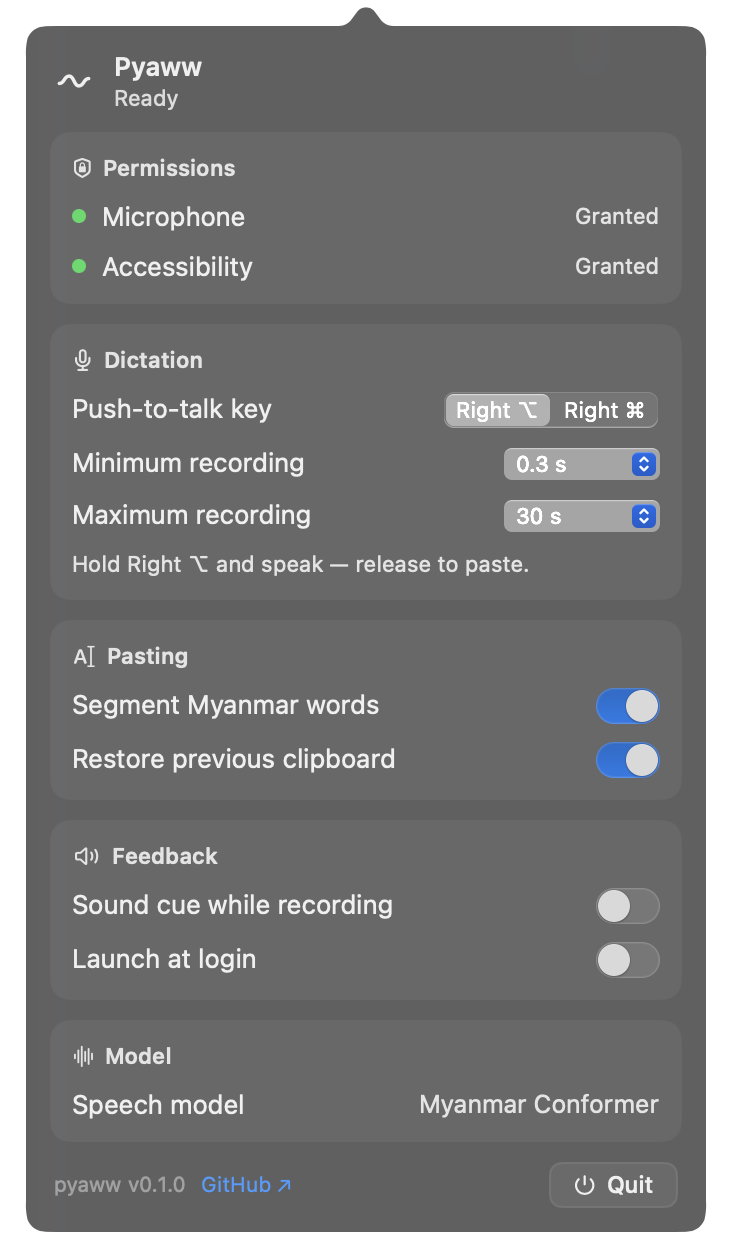
The whole app, one panelအက်ပ်တစ်ခုလုံး — panel တစ်ခုတည်း
Click the wave in your menu bar: permissions, key choice, timing, word segmentation, model status, and quit — nothing hidden.Menu bar က wave ကို နှိပ်ကြည့်ပါ — permission တွေ၊ ခလုတ်ရွေးချယ်မှု၊ အချိန်သတ်မှတ်ချက်၊ စကားလုံးဖြတ်ပုံ၊ model အခြေအနေ၊ အက်ပ်ပိတ်တာအထိ — အားလုံး တစ်နေရာတည်းမှာ မြင်ရပါတယ်။ ဝှက်ထားတာ မရှိပါဘူး။
What makes it differentဘာတွေ ထူးခြားလဲ
Fully offlineအင်တာနက် လုံးဝမလိုခြင်း
The Myanmar speech model ships inside the app. No internet needed — ever.မြန်မာ speech model က အက်ပ်ထဲမှာ ပါပြီးသား။ ဒါကြောင့် အင်တာနက် မရှိလည်း သုံးလို့ ရပါတယ်။
Voice privacyအသံလုံခြုံမှုရှိခြင်း
No account, no cloud, no analytics. The app makes no network requests at all.Account မလိုပါဘူး၊ cloud မရှိပါဘူး၊ tracking လည်း မရှိပါဘူး။ အက်ပ်က အင်တာနက်ကို လုံးဝ မချိတ်ပါဘူး။
Natural wordsသဘာဝကျသော မြန်မာစကားလုံးများ
Myanmar word segmentation is built in, so the result reads like real writing.မြန်မာစာ စကားလုံးဖြတ်တာ ပါပြီးသား။ ဒါကြောင့် ရလာတဲ့စာက တကယ်ရေးထားသလို ဖတ်လို့ကောင်းပါတယ်။
Clipboard-safeClipboard ထိန်းသိမ်းပေးထားခြင်း
Your clipboard is restored right after the paste — copy-paste habits untouched.Paste လုပ်ပြီးတာနဲ့ clipboard ထဲက အရင်အရာ ပြန်ရှိနေပါပြီ — copy-paste အလေ့အထ မပျက်ပါဘူး။
Quiet by designအနှောင့်အယှက်မရှိခြင်း
A gentle sound cue, a red wave while recording, Esc to abandon. No windows to manage.အသံအနည်းငယ် မြည်ပါမယ်၊ ရိုက်နေစဉ် wave အနီရောင်၊ ပယ်ချင်ရင် Esc။ စီမံစရာ window တွေ မရှိပါဘူး။
Ready at loginစက်ဖွင့်တာနဲ့ အဆင်သင့်သုံးလို့ရခြင်း
Optional launch at login — the wave is right there when you sit down.ကွန်ပျူတာ ရှေ့ရောက်တာနဲ့ Pyaww က အသင့် ရှိနေပါပြီ။
Your voice never leaves your Mac.သင့်အသံ Mac ထဲကနေ ဘယ်တော့မှ မထွက်ပါဘူး။
Recognition runs entirely on your Mac with a bundled Myanmar speech model — there is no server to leak to. No account, no analytics, no update pings. That's not a setting; it's the architecture.Speech recognition က သင့် Mac ပေါ်မှာပဲ အလုပ်လုပ်ပါတယ် — အသံ ပို့စရာ server ဆိုတာ မရှိပါဘူး။ Account မလိုပါဘူး၊ analytics မရှိပါဘူး၊ update အတွက်တောင် network မချိတ်ပါဘူး။ ဒါက setting တစ်ခု မဟုတ်ပါဘူး — အက်ပ်ရဲ့ ဒီဇိုင်းပါ။
Install in a minuteတစ်မိနစ်အတွင်း တပ်ဆင်ပါ
- Download the DMG and open it.DMG ကို download လုပ်ပြီး ဖွင့်ပါ။
- Drag Pyaww into Applications — or use the installer dialog.Pyaww ကို Applications ထဲ ဆွဲထည့်ပါ — installer dialog သုံးလို့လည်း ရပါတယ်။
- First open: macOS will block it — it's a free project, not notarized. Go to System Settings → Privacy & Security → Open Anyway.ပထမဆုံး ဖွင့်ချိန်မှာ macOS က ပိတ်ထားပါလိမ့်မယ် — Apple notarization လက်မှတ် မရှိလို့ပါ (အခမဲ့ project)။ ဒါ ပုံမှန်ပါပဲ — System Settings → Privacy & Security → Open Anyway ကို နှိပ်လိုက်ရင် ရပါပြီ။
- Click the wave — you're set. Grant Microphone and Accessibility when asked.Menu bar က wave ကို နှိပ်လိုက်ပါ — ပြီးပါပြီ။ တောင်းလာရင် Microphone နဲ့ Accessibility permission ကို ပေးလိုက်ပါ။
Full walkthrough, including a Terminal fallback, in the README.အဆင့်ဆင့် လမ်းညွှန် (Terminal နည်းလမ်းအပါအဝင်) README မှာ ရှိပါတယ်။