Install Microsoft SQL Server on Mac M2 Air using Docker and Azure Data Studio
This guide walks you through setting up Microsoft SQL Server on Mac M2 Air using Docker containers and connecting via Azure Data Studio with the AdventureWorks sample database.
Prerequisites
Install the required tools:
- Docker Desktop for Mac
- Azure Data Studio for Mac
Check Docker Settings (Apple Silicon)
Before creating the container, verify Docker Desktop is configured for Apple Silicon:
- Open Docker Desktop → Settings → General tab
- Ensure Use the Apple Virtualization framework is enabled
- Enable Use Rosetta for x86_64/amd64 emulation on Apple Silicon to support amd64 images
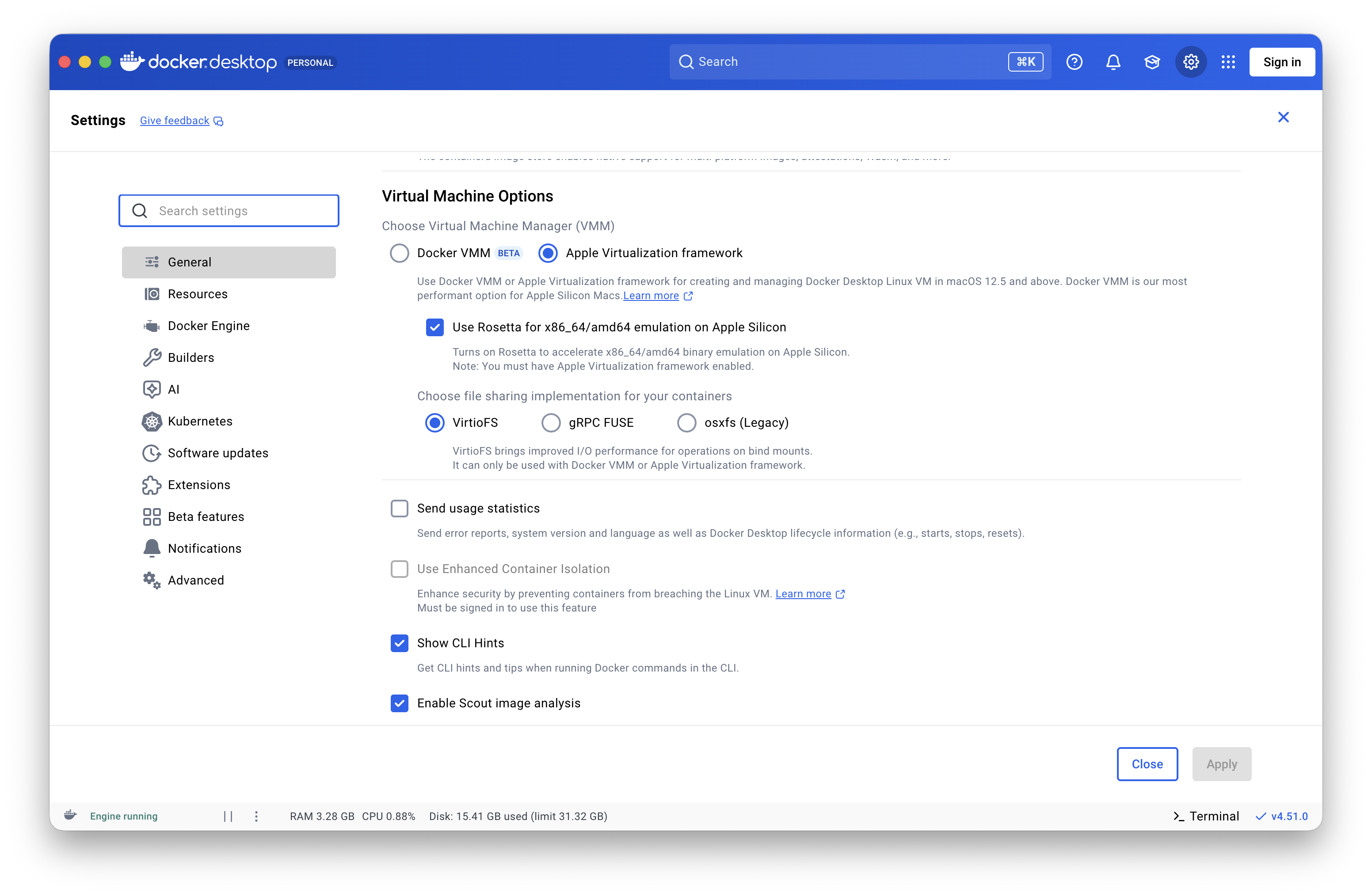
Click image to enlarge - Docker Desktop settings for Apple Silicon and Rosetta
Setting Up SQL Server Container
Create and run the MSSQL Server container with the following command:
docker run --platform linux/amd64 -e "ACCEPT_EULA=Y" -e 'MSSQL_SA_PASSWORD=StrongPa55w0rd!' -p 1433:1433 --name sqlserver -d mcr.microsoft.com/mssql/server:2022-latest
Connecting with Azure Data Studio
Open Azure Data Studio and create a new connection using “SQL Username and Password”:
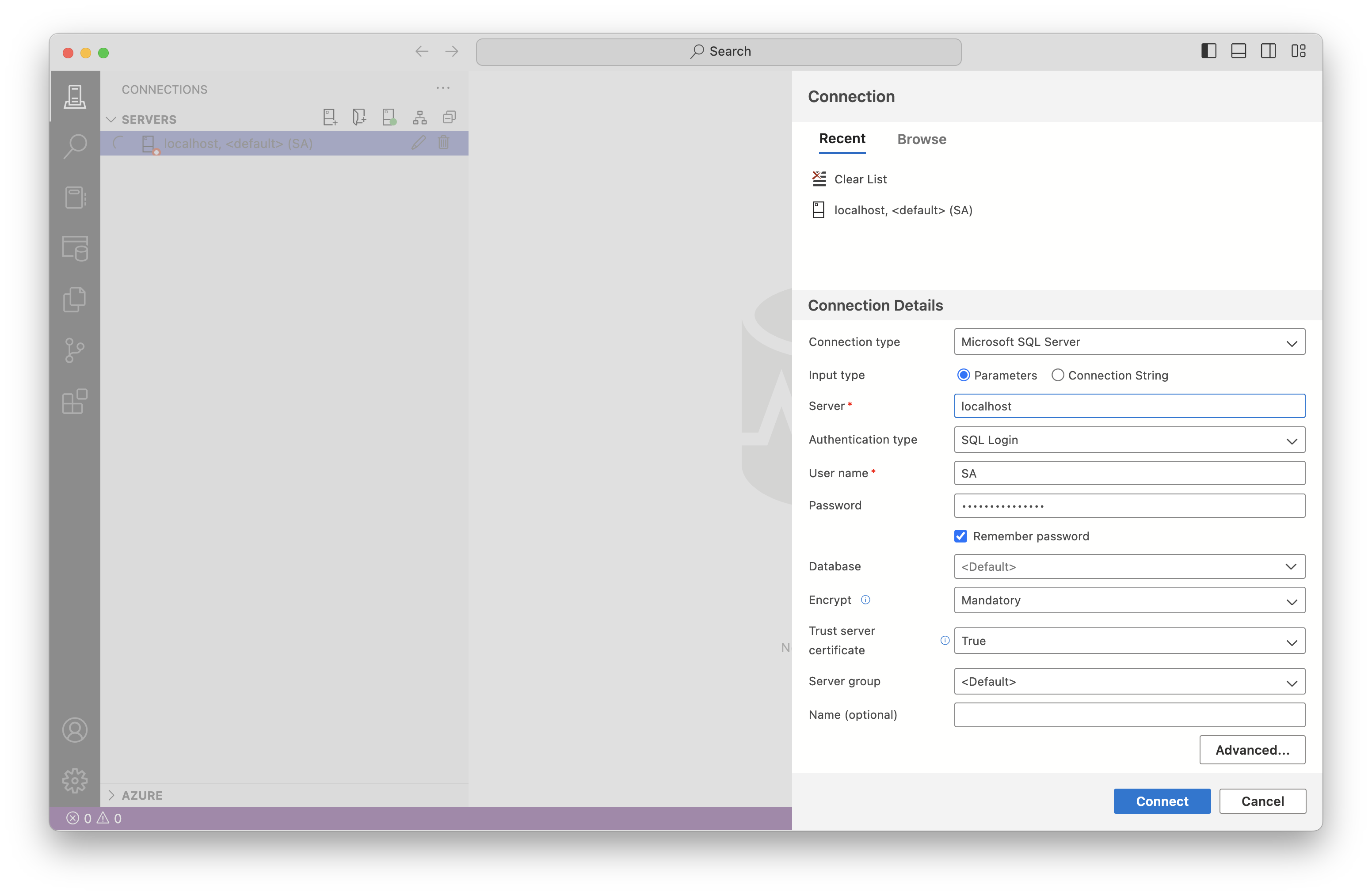
Click image to enlarge - Connection setup in Azure Data Studio
Setting Up Sample Database
Download the AdventureWorks sample database and import it to your container using Docker Desktop GUI.
Open Docker Desktop and upload the AdventureWorks2016.bak file to /var/opt/mssql/ directory:
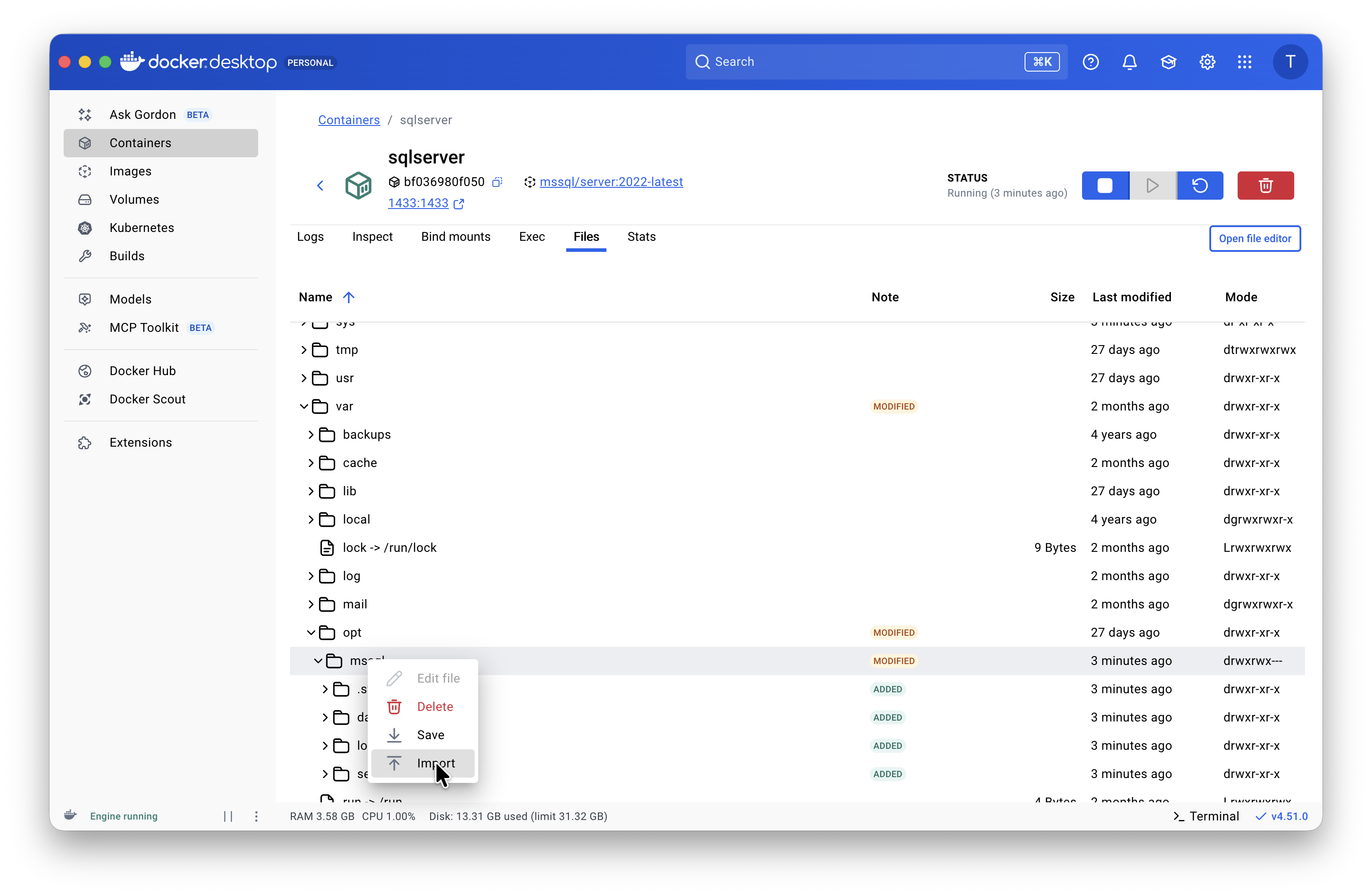
Click image to enlarge - Uploading database backup file to Docker container
Database Restoration
Enable Preview Features
First, go to Azure Data Studio settings and enable “unreleased preview features”:
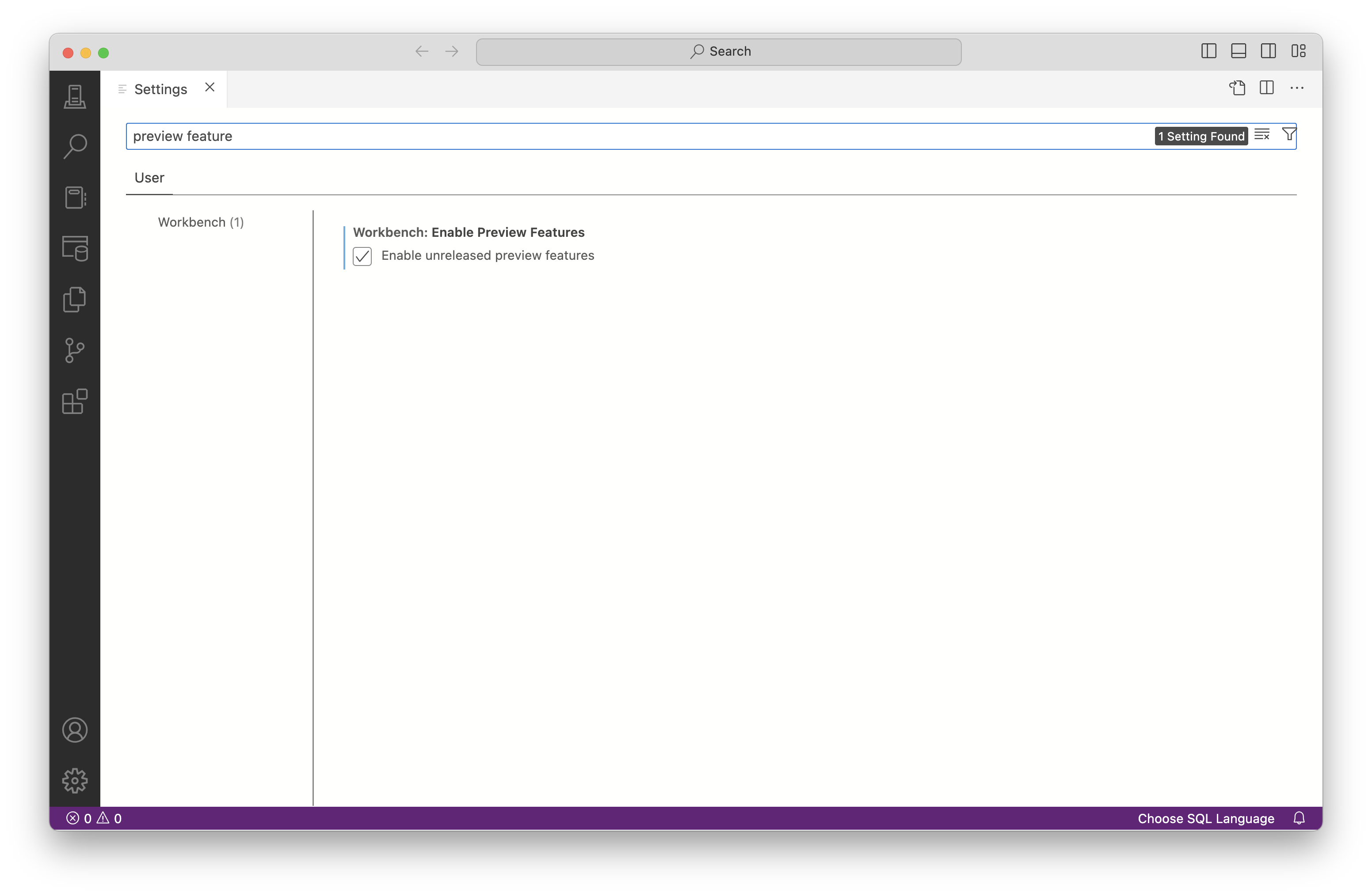
Click image to enlarge - Enable preview features in Azure Data Studio settings
Restore Database
Right-click on “Databases” folder and select “Restore Database (Preview)”:
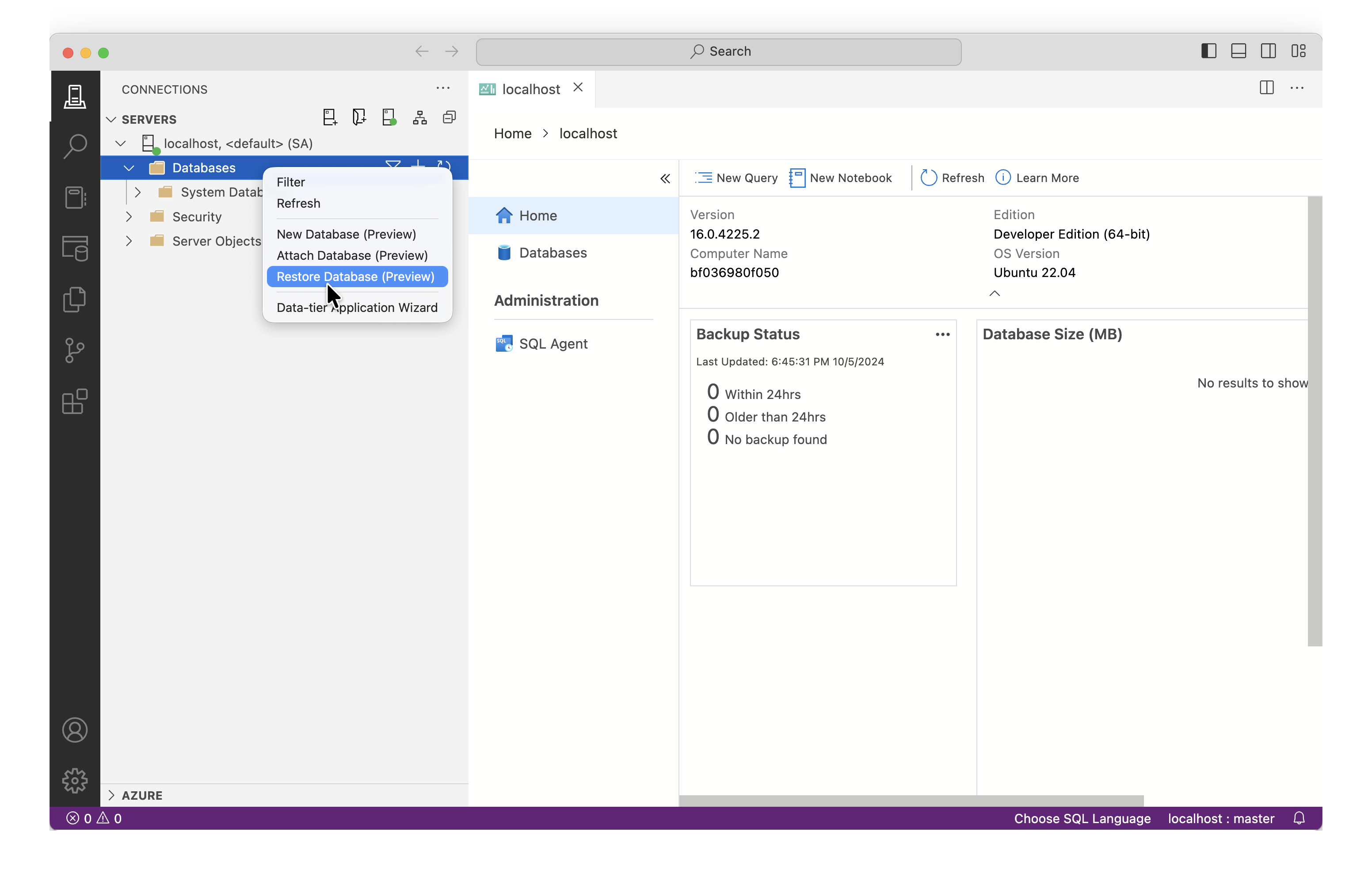
Click image to enlarge - Access the restore database feature
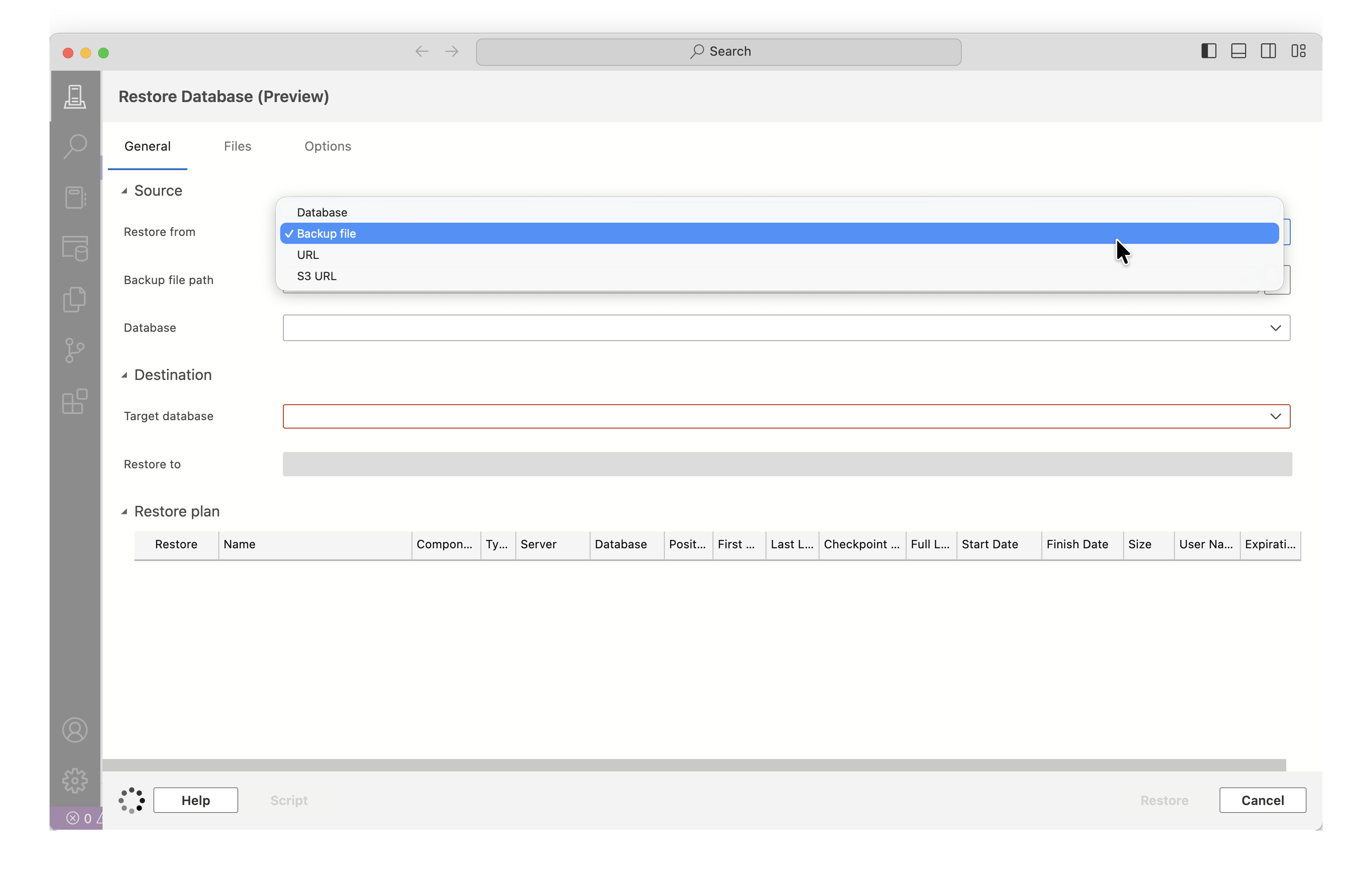
Click image to enlarge - Restore from “Backup file”
Select the AdventureWorks2016.bak file from /var/opt/mssql/ and complete the restoration:
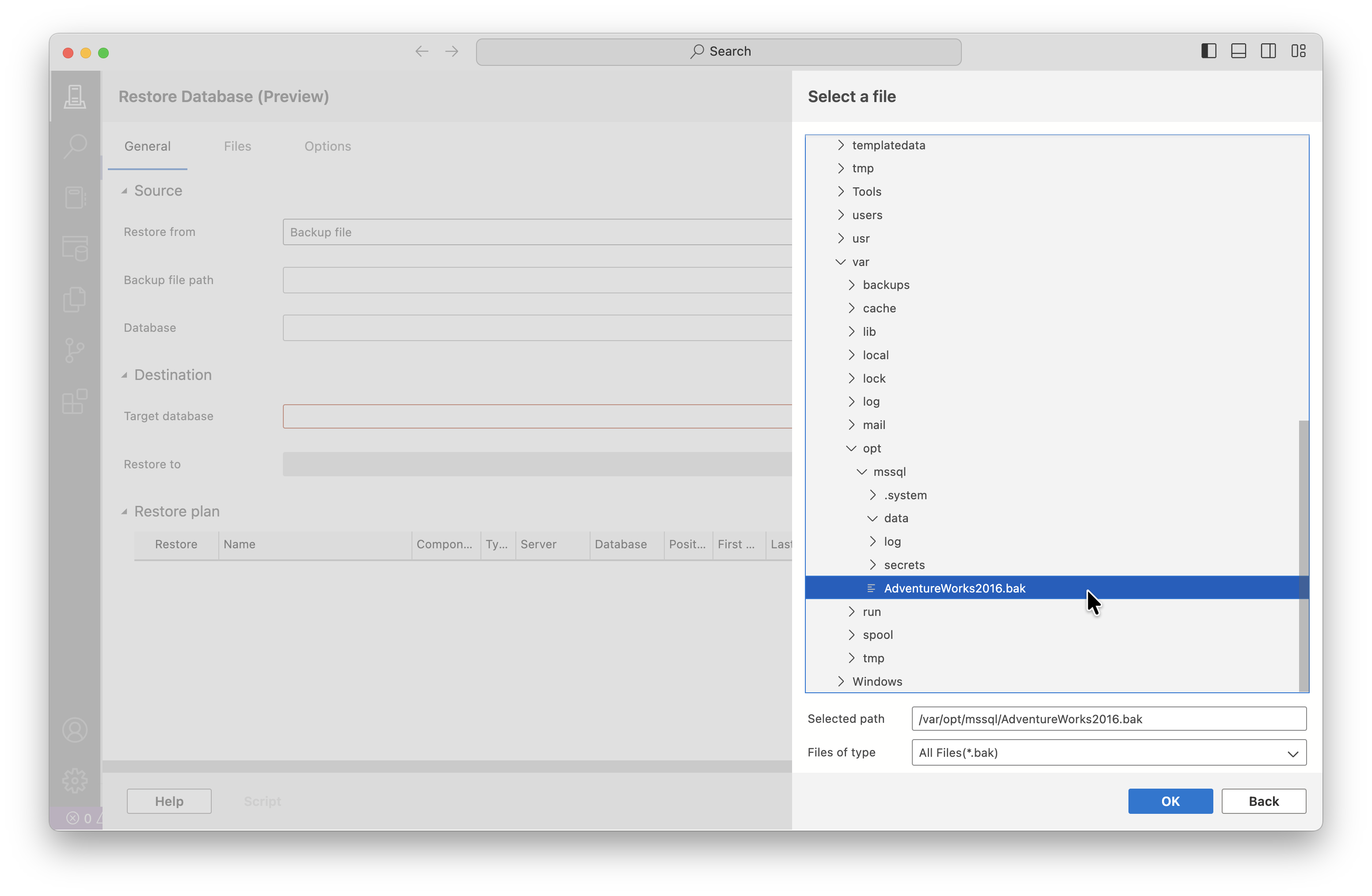
Click image to enlarge - Restore AdventureWorks database from backup file
Running Queries
You can now execute SQL queries against the AdventureWorks database in Azure Data Studio: 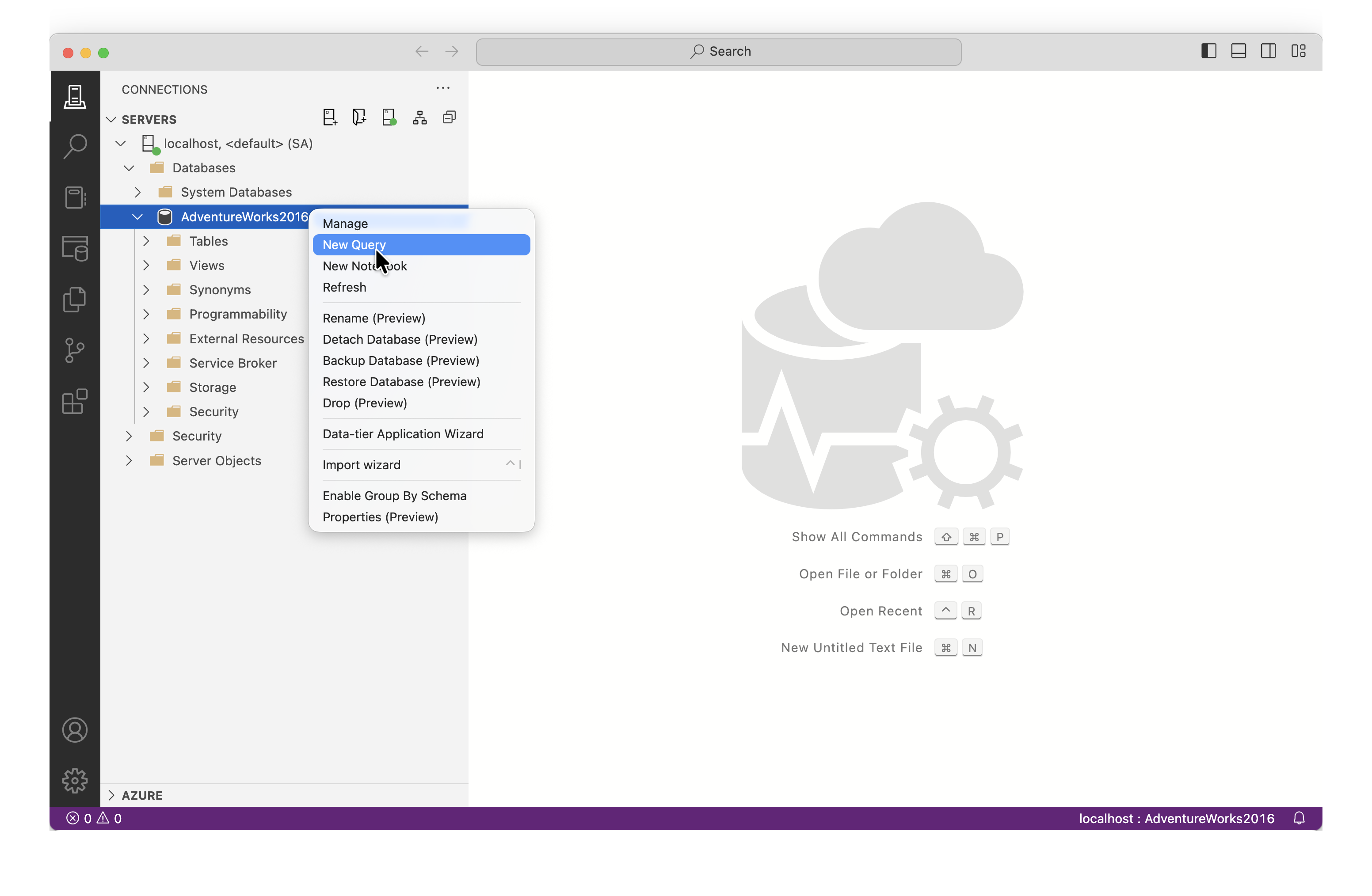
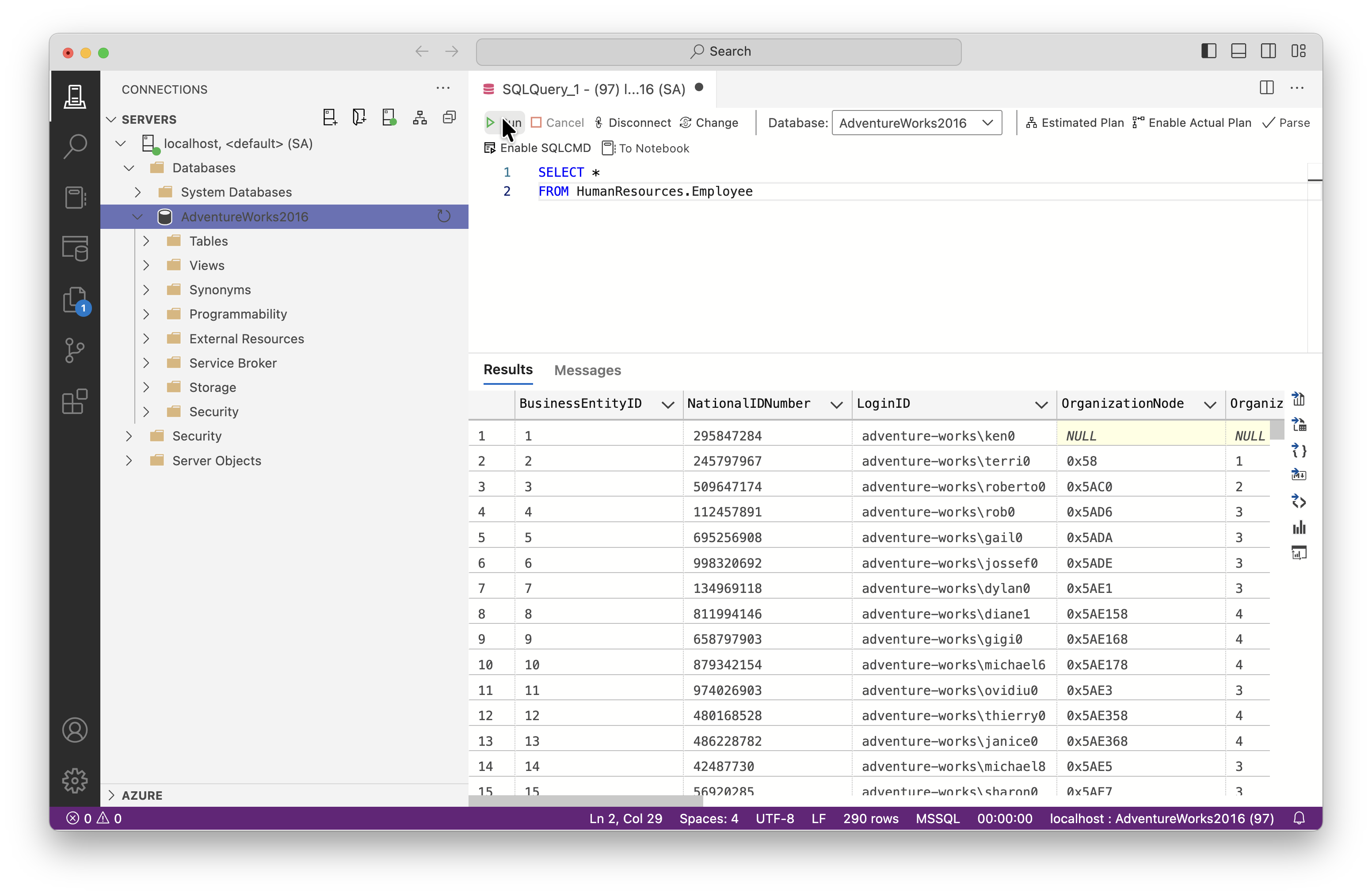
Click image to enlarge - Successfully connected and running queries on AdventureWorks database
Summary
You now have a fully functional Microsoft SQL Server running on your Mac M2 Air with:
- MSSQL Server 2022 running in Docker container
- Azure Data Studio connected for database management
- AdventureWorks sample database for testing and learning
The setup is perfect for development, learning SQL, or testing database applications locally.
Enjoy Reading This Article?
Here are some more articles you might like to read next: